
Google Tag Gateway (GTG) and Clickio Consent Mode
This article explains how Google Tag Gateway (GTG) can affect Consent Mode implementations for websites using Clickio Consent CMP, how to verify whether a Google tag is enrolled in GTG, and what to do if a late consent signal is detected for a GTG-enabled tag.
What Is Google Tag Gateway?
Google Tag Gateway for advertisers lets a website deploy a Google tag or Google Tag Manager (GTM) container through the site's own first-party domain instead of loading it directly from a Google domain. Google explains that GTG loads the tag from your domain and sends measurement events to your domain, where they are forwarded to Google. See Google's documentation for Google Tag Gateway with Google Cloud Load Balancer and Google Tag Gateway with a CDN.
GTG can help improve signal recovery and measurement reliability because Google tags are delivered from the publisher's own domain. However, GTG changes how Google tags are loaded on the page, and this can affect Consent Mode timing.
How GTG Affects Consent
Consent Mode requires a default consent state to be available before Google tags send measurement data. Google's Consent Mode documentation states that the gtag('consent', 'default', ...) command should run before commands that send measurement data, such as config or event. For GTM implementations, Google recommends using the Tag Manager consent APIs, such as setDefaultConsentState and updateConsentState, in consent templates. See Google's Consent Mode setup guide.
Clickio Consent CMP supports Google Consent Mode v2 and can set default consent states either through on-page code or through the Clickio Consent GTM Template. By our standard on-page implementation, the Consent Mode default config and Clickio CMP main code should be placed before Google tags. See Clickio Google Consent Mode v2 Implementation.
When GTG is enabled, especially through one-click CDN injection, the Google tag or GTM container may be injected by the CDN or first-party gateway before the website's normal page scripts run. This often prevents the publisher from fully controlling the script load order. If the GTG-delivered tag fires before Clickio Consent has set the default consent state, Google Tag Assistant or the Clickio Consent Mode Diagnostic may report a late consent signal.
In practice, the important rule is:
- Consent defaults must be available before GTG-delivered Google tags evaluate consent or send measurement commands.
- If GTG changes the load order, adjust the implementation so GTG and Consent Mode work in the correct sequence.
Recommended Clickio Consent Setups
Clickio supports two main Consent Mode implementation patterns.
Option 1: Clickio Consent Through GTM
Use the Clickio Consent GTM Template and fire it on the Consent Initialization trigger. This is the preferred approach when consent defaults and Google tags are managed inside the same GTM container. Do not use regular Page View or Initialization triggers for the Clickio Consent tag because they may run too late. See Clickio Implementation via Google Tag Manager.
If you use GTG with GTM, deploy the GTM container via GTG and keep the Clickio Consent template, consent defaults, and dependent Google tags inside the same GTM-controlled flow wherever possible.
Option 2: Clickio Consent On Page
Place the Clickio Consent code and Consent Mode default config directly in the page <head> before any Google tag, GTM snippet, or GTG bootstrap that can load Google tags. Clickio's Consent Mode documentation describes the required order for on-page snippets:
- Optional TCF API stub.
- Consent Mode default config.
- Clickio CMP main code.
-
gtag.jsand/or GTM code snippet.
If GTG is injected independently by a CDN before these scripts, this order may no longer be guaranteed. In that case, use one of the remediation options below.
How To Verify GTG Enrollment
You should verify GTG enrollment whenever a late consent signal is detected and the affected Google tag might be served through GTG.
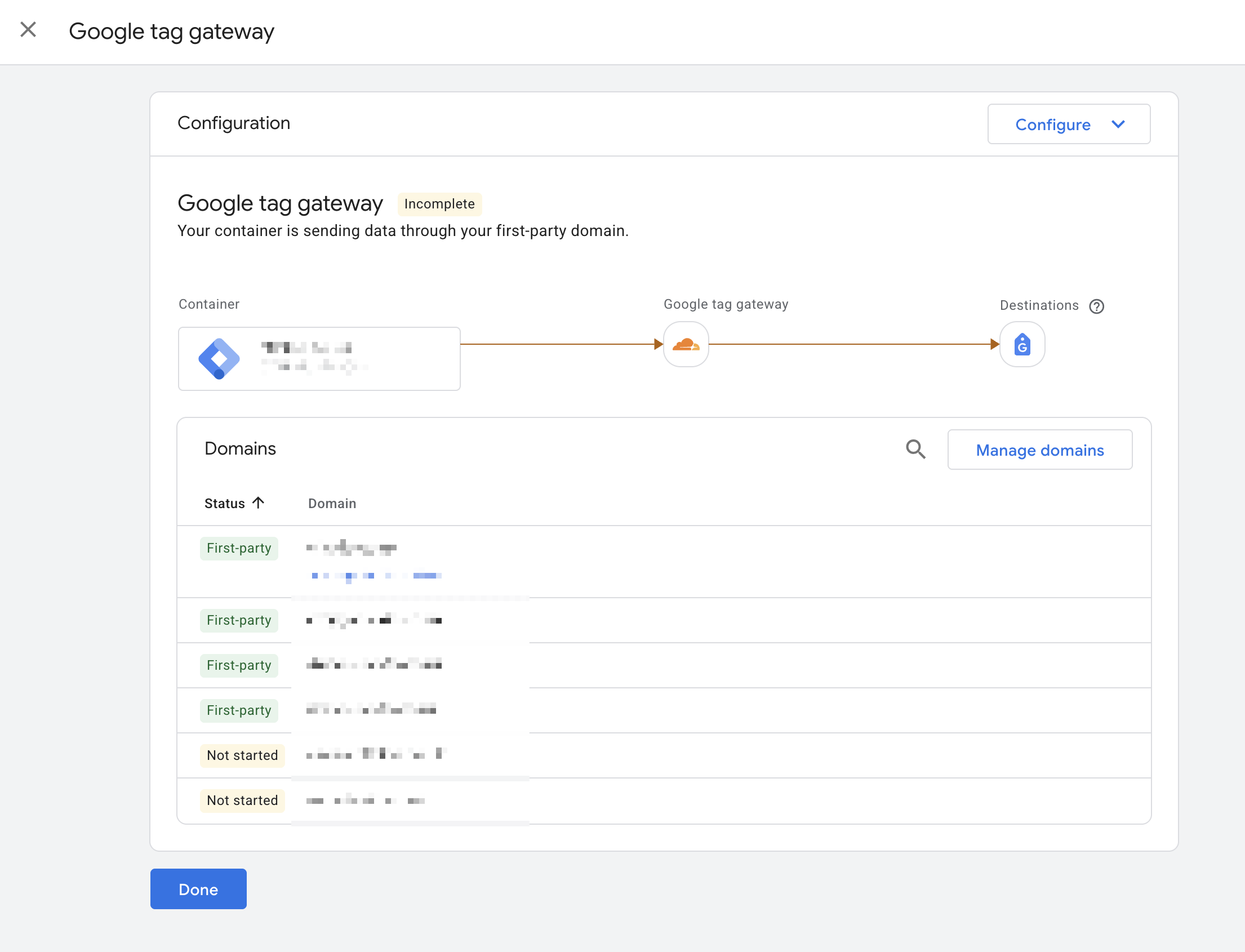
Method 1: Verify In Google Tag Settings
Use Google's tag settings UI to check whether the tag is configured for Google Tag Gateway.
From the Google Tag Gateway screen, you can review the current setup, configured domains, and gateway configuration.
See Google's Access your Google tag settings instructions.
Method 2: Use the Clickio Diagnostic Tool
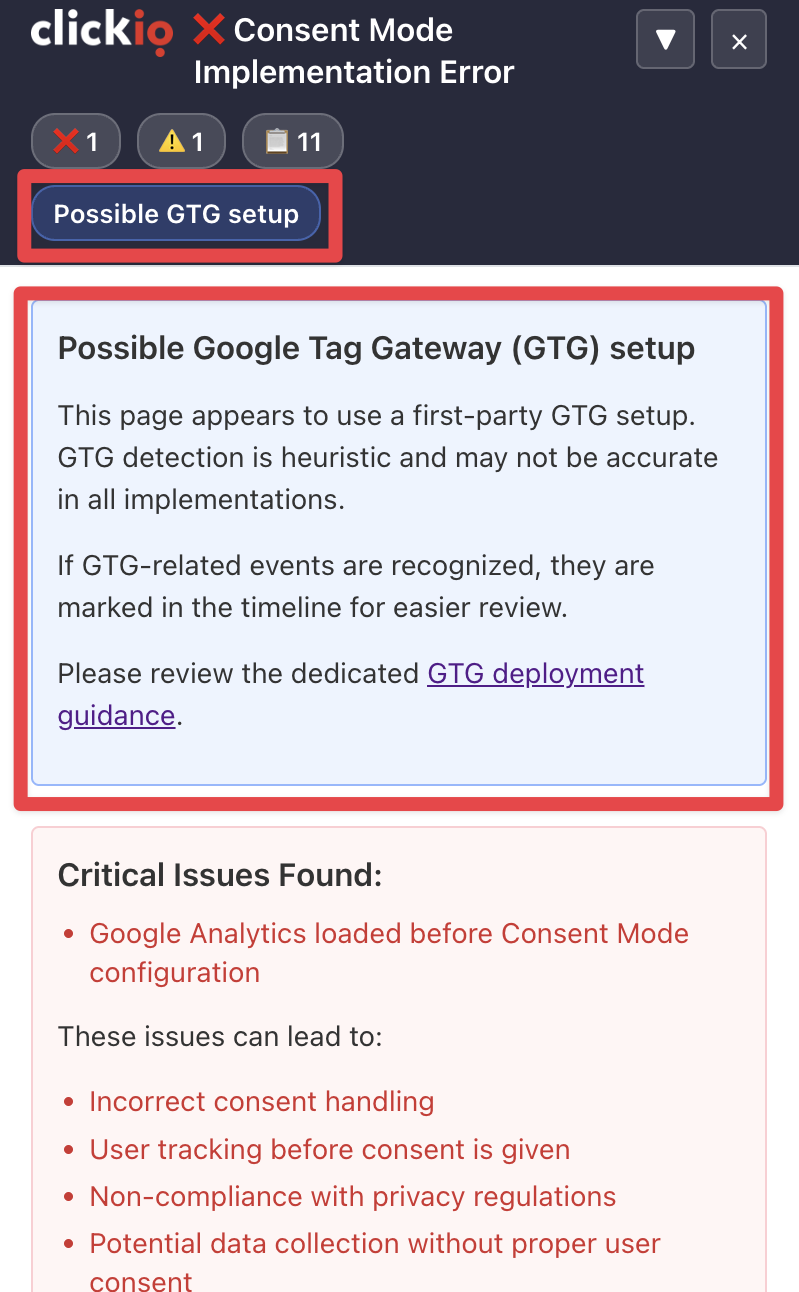
Clickio Consent includes a diagnostic tool for checking Google Consent Mode implementations. You can launch it by opening a page with the ?clickio_cmp_diag=1 parameter, provided the Clickio Consent script is available on that page.
As an additional troubleshooting aid, the Clickio diagnostic tool can heuristically identify signals that may indicate GTG usage on the page. When such signals are found, the diagnostic overlay shows a Possible GTG setup marker and a Possible Google Tag Gateway (GTG) setup information panel. If GTG-related events are recognized, they are marked in the event timeline.
The Clickio diagnostic tool does not replace verification in Google tag settings. It is intended for page-level troubleshooting and can help indicate whether the page appears to use first-party GTG delivery and whether GTG-related events may be involved in a Consent Mode issue.
For general Consent Mode validation steps, see How to check your Google Consent Mode v2 implementation.
What To Do If Late Consent Is Detected And GTG Enrollment Is Verified
If a late consent signal is detected and GTG enrollment is verified for the affected tag, review the setup carefully. The late consent issue means the Google tag or GTM container evaluated or sent measurement commands before the default consent state was available.
Customers should choose the approach that best matches their site architecture and regulatory requirements.
Option A: Adopt Advanced Consent Mode and Configure Google Controls
For deployments where GTG enrollment is verified, Advanced Consent Mode is the recommended approach because it is compatible with manual GTG setups. In Advanced Consent Mode, Google tags may load early, but they must receive a correct default consent state first. Tag behavior is then adjusted based on denied or granted consent states.
When using this approach:
- Ensure Clickio Consent Mode v2 is enabled in Clickio Consent settings. Learn more about Consent Mode in Google Consent Mode guide.
- Ensure Global Consent Mode defaults is configured.
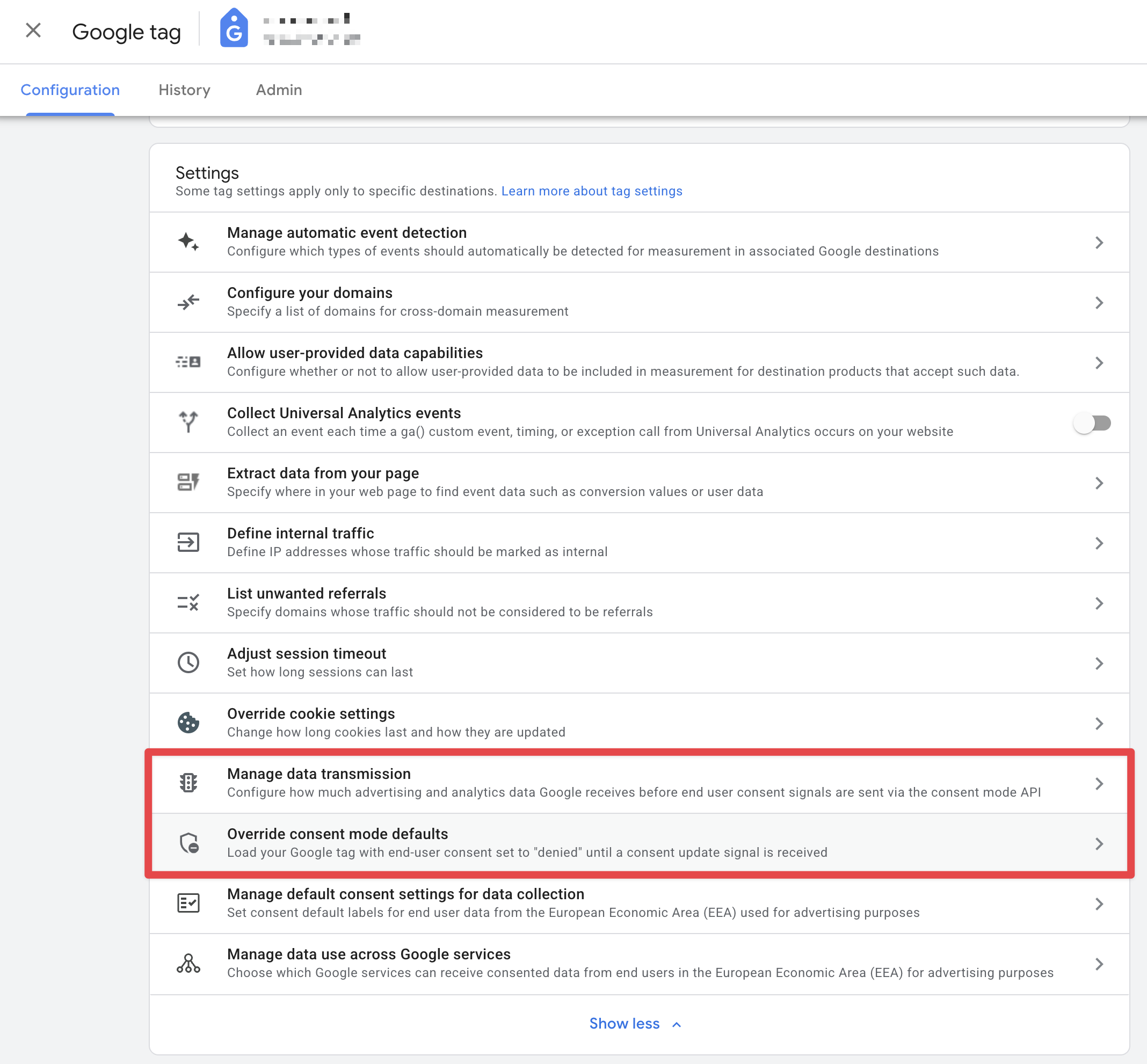
- Configure Google tag settings according to your consent scope:
-
Override consent mode defaults.
This setting is a safety mechanism to make sure that before end users interact with Clickio Consent, only the consent state and cookieless pings are sent to Google. Learn more about cookieless pings
This setting will load your Google tag with the consent state set to "denied" for the regions you specify until a consent signal is received from Clickio Consent. Learn more about the EU user consent policyMake sure the specified regions match your Clickio Consent Scope settings.
- Configure Data Transmission Controls, which can restrict advertising, behavioral analytics, or diagnostics data transmission according to the selected options.
-
Override consent mode defaults.
Option B: Migrate Consent And Google Tags Into One GTM Container And Deploy GTM Via GTG
If GTG is used to deliver a GTM container, move the Clickio Consent GTM Template, consent defaults, and relevant Google tags into that GTM container. Deploy the GTM container via GTG so the consent flow and Google tags are managed in a single container execution model.
When using this approach:
- Install the Clickio Consent GTM Template.
- Fire the Clickio Consent tag on
Consent Initialization. - Keep Google Analytics, Google Ads, and other Google tags in the same GTM container where possible.
- Publish and verify implementation.
See also Implementation via Google Tag Manager.
Option C: Set Up GTG Manually With Customer-Controlled Script Order
If a one-click CDN GTG setup injects the Google tag before Clickio Consent can set defaults, consider a manual GTG setup where the customer controls the script import order. This approach is useful when the site needs GTG but cannot safely rely on automated CDN injection order.
When using this approach:
- Avoid CDN rules or automatic injections that place Google tags before the consent code.
- Ensure Clickio Consent Mode v2 is enabled in Clickio Consent settings. Learn more about Consent Mode in Google Consent Mode guide.
- Ensure Global Consent Mode defaults is configured.
- Ensure the Consent Mode default config runs before the GTG-delivered Google tag or GTM container.
- Verify implementation from a region inside your consent scope.
- Set up Google tag gateway for advertisers
- Set up Google tag gateway for advertisers with your content delivery network (CDN)
- Set up Google tag gateway for advertisers in Google Tag Manager with Cloudflare
- Set up Google tag gateway for advertisers in the Google tag with Cloudflare
Validating implementation
After making changes, validate the implementation.
- Open the page with the Clickio diagnostic tool enabled or use Google Tag Assistant / GTM Preview Mode to verify Consent Mode flags before and after user consent. See also: Troubleshoot consent mode with Tag Assistant
- If a late consent issue remains, follow the GTG deployment recommendations in this article.
Summary
GTG can improve first-party delivery of Google tags, but it can also change script execution order. If GTG-delivered tags load before Consent Mode defaults are set, a late consent issue may occur.
For Clickio Consent customers:
- Verify GTG enrollment in Google tag settings.
- Use the Clickio diagnostic tool as an additional page-level check for GTG enrollment.
- If late consent is detected and GTG enrollment is verified, adopt Advanced Consent Mode with the appropriate Google controls, migrate consent and Google tags into a GTM container deployed via GTG, or set up GTG manually with self-controlled script order.