
How to Implement Dynamic Clickio Ad Formats in Google Ad Manager?
Use this step-by-step instruction to correctly set up Dynamic Clickio ad formats (e.g. Smart Banner, Horizontal Sticky, Vertical Sticky, Splashscreen, Floater, High-Viewability Header, etc.) in your Google Ad Manager account.
For the Standard Clickio ad unit, please refer to the separate instruction available at the following link.
Step 1: Create a New Ad Unit
Creating a dedicated ad unit in GAM ensures that our dynamic unit operates independently without taking impressions from any other unit on the page. Our dynamic units are out-of-page, so there is no need to use one of your existing ad placements on the site.
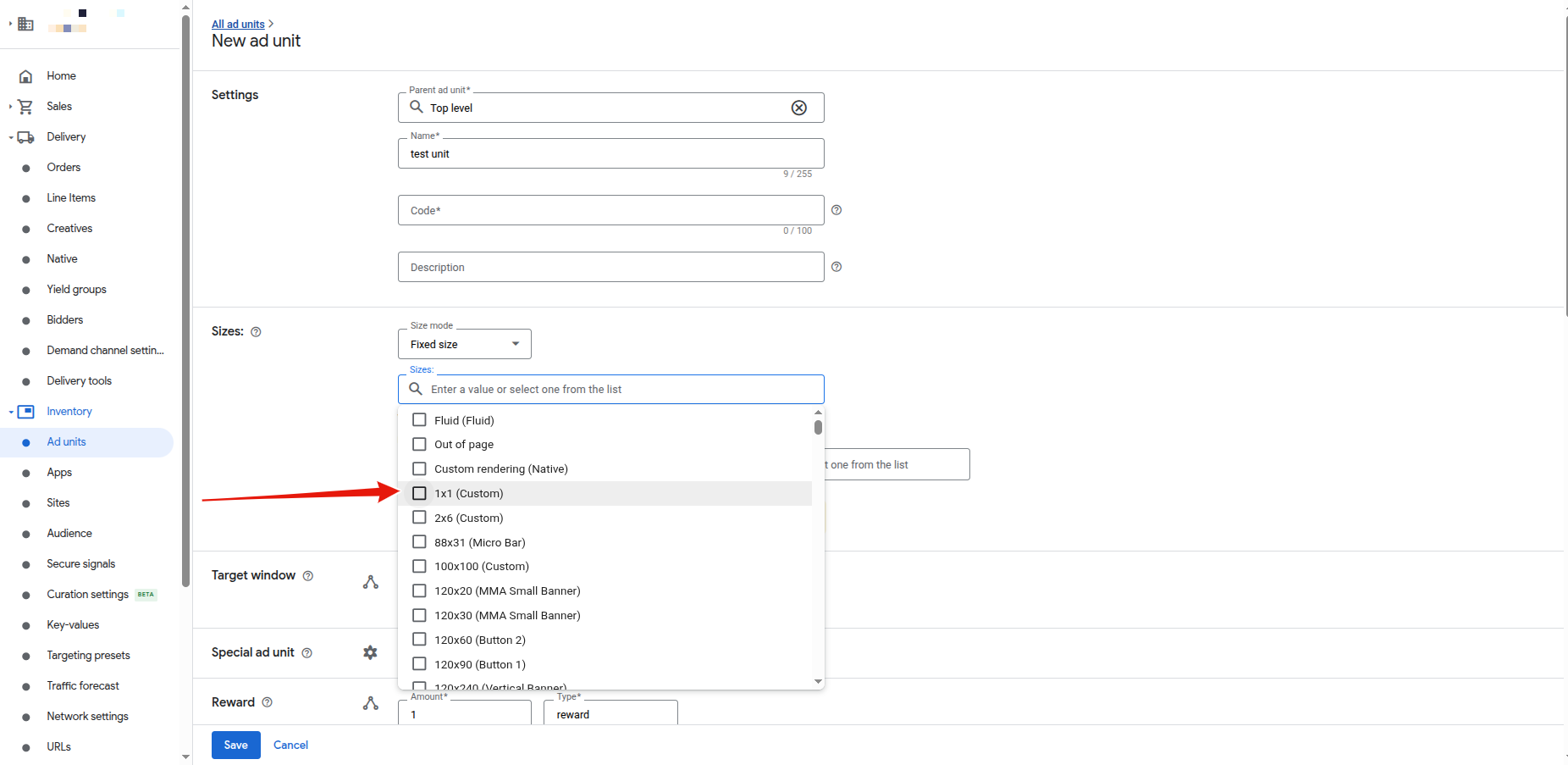
- In Google Ad Manager, create a new ad unit specifically for the Clickio tag.
- Add the 1x1 (Custom) size to the ad unit configuration.
- Generate the ad unit code and insert it into your website.
Step 2: Create a Line Item
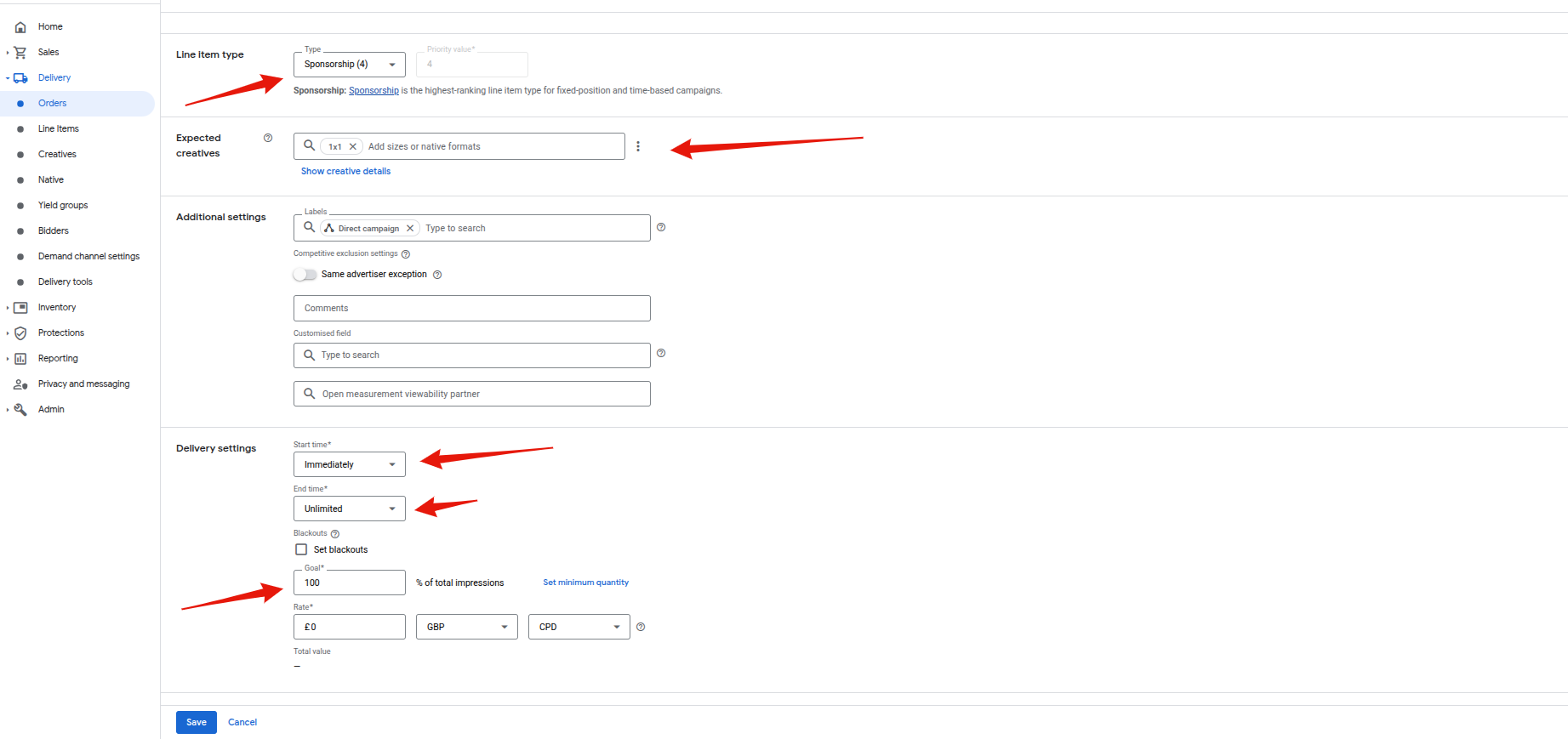
Set up a new line item for the Clickio tag. Ensure the following fields are correctly filled:
- Targeting Sizes: In the "Expected creatives" section, add 1x1
- Line item type: Sponsorship (4)
- Start time: Immediately
- End time: Unlimited
- Goal: 100%
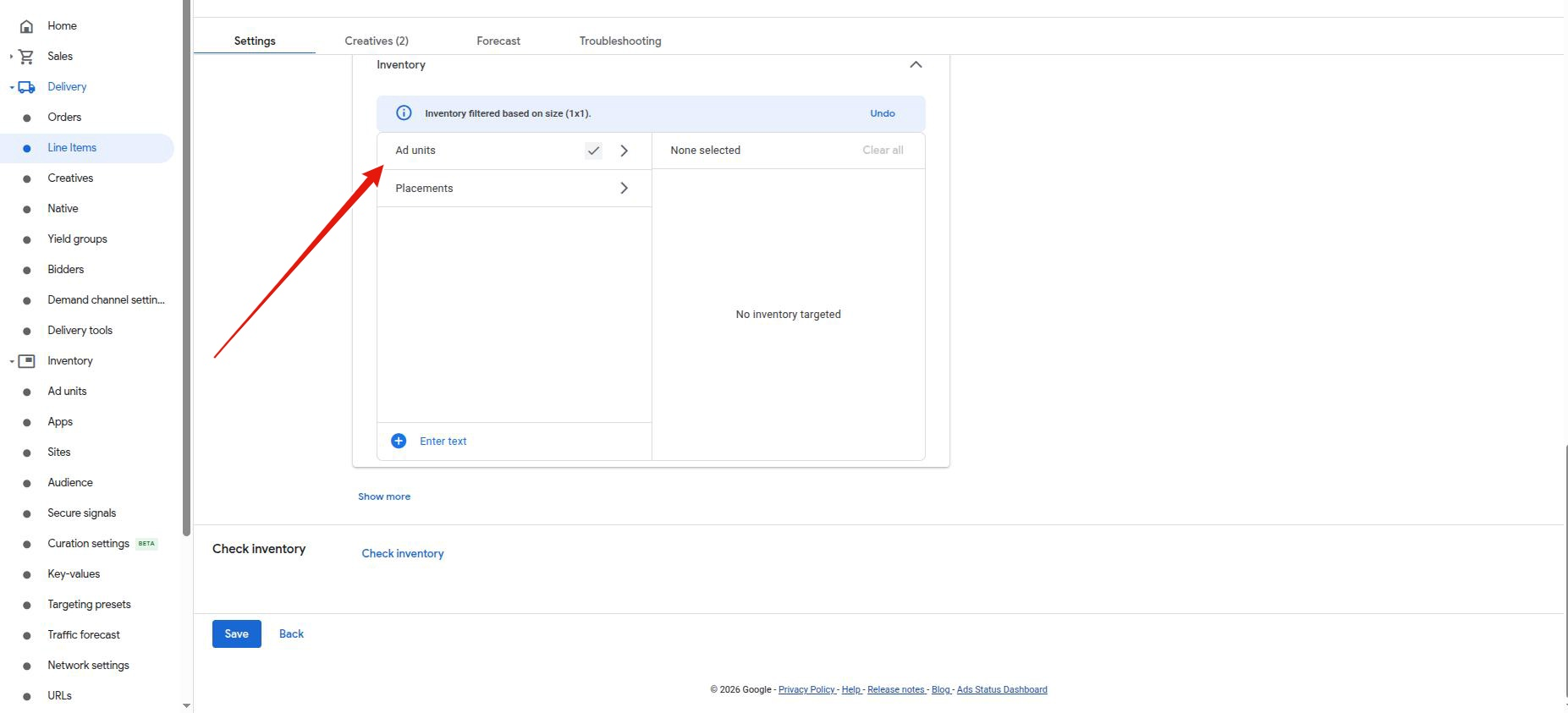
- Targeting: Assign it to the dedicated 1x1 ad unit you created previously
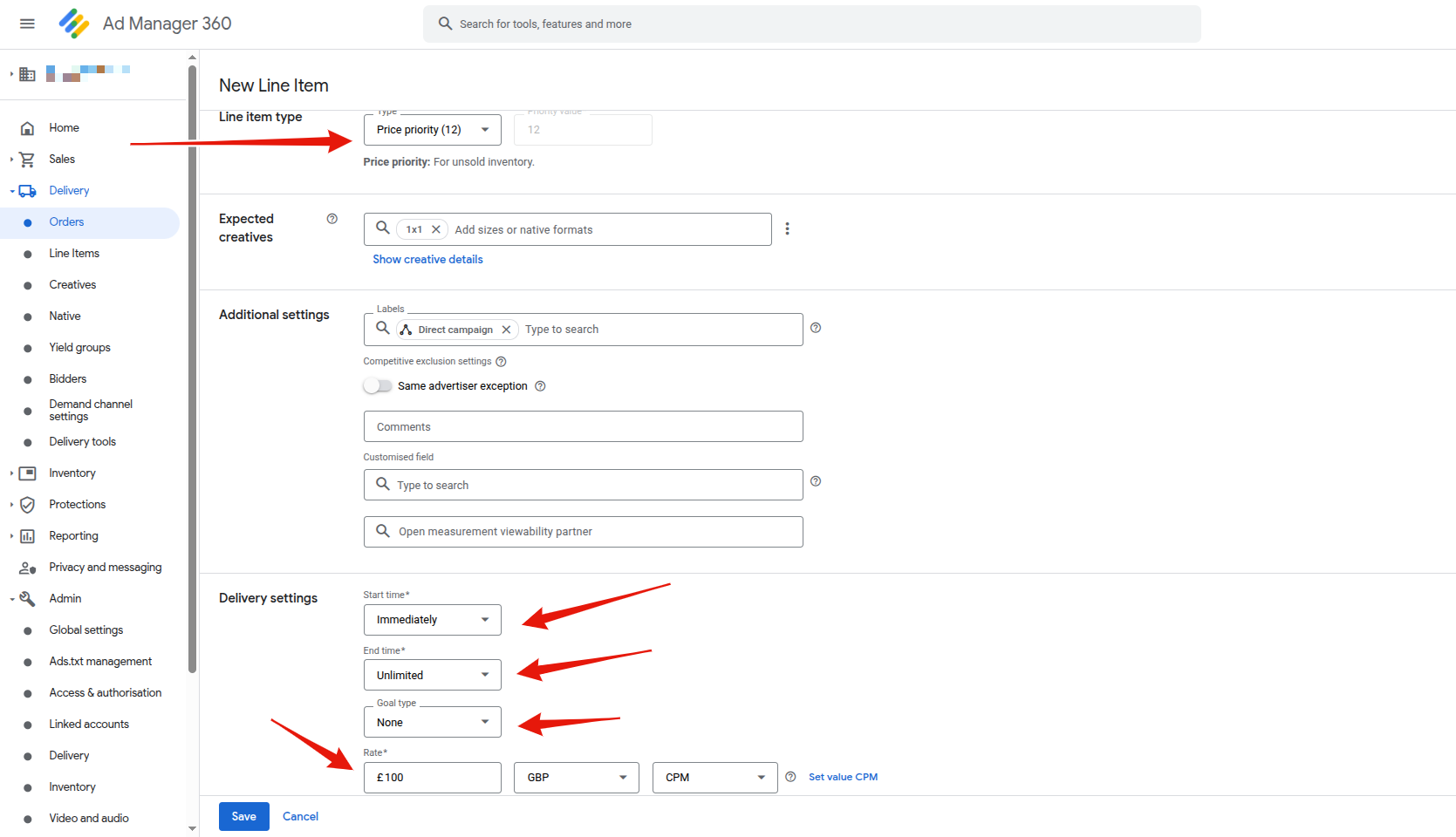
Alternatively, in case you serve direct campaigns on the same inventory, you can use the following settings:
- Line item type: Price Priority (12)
- Start time: Immediately
- End time: Unlimited
- Goal: None
- Rate: Adjust it according to your needs and the distribution of direct campaign line items, but do not set it too low to prevent programmatic demand from taking control. A recommended range is 50 to 100 USD or the equivalent in your network’s currency.
Step 3: Add a Third-Party Creative
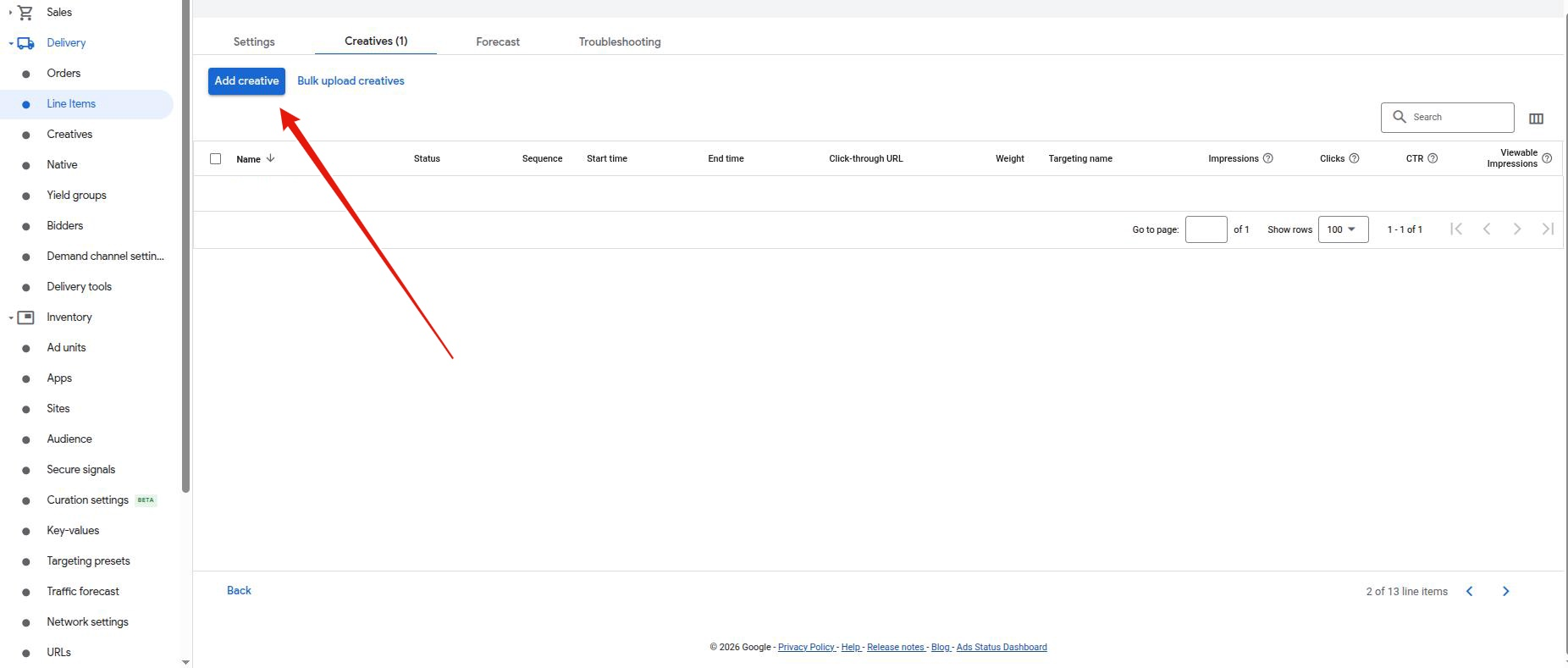
- Inside the line item, go to the Creatives tab and select Add creative > New creative (choose 1x1 from the list) > Third party.
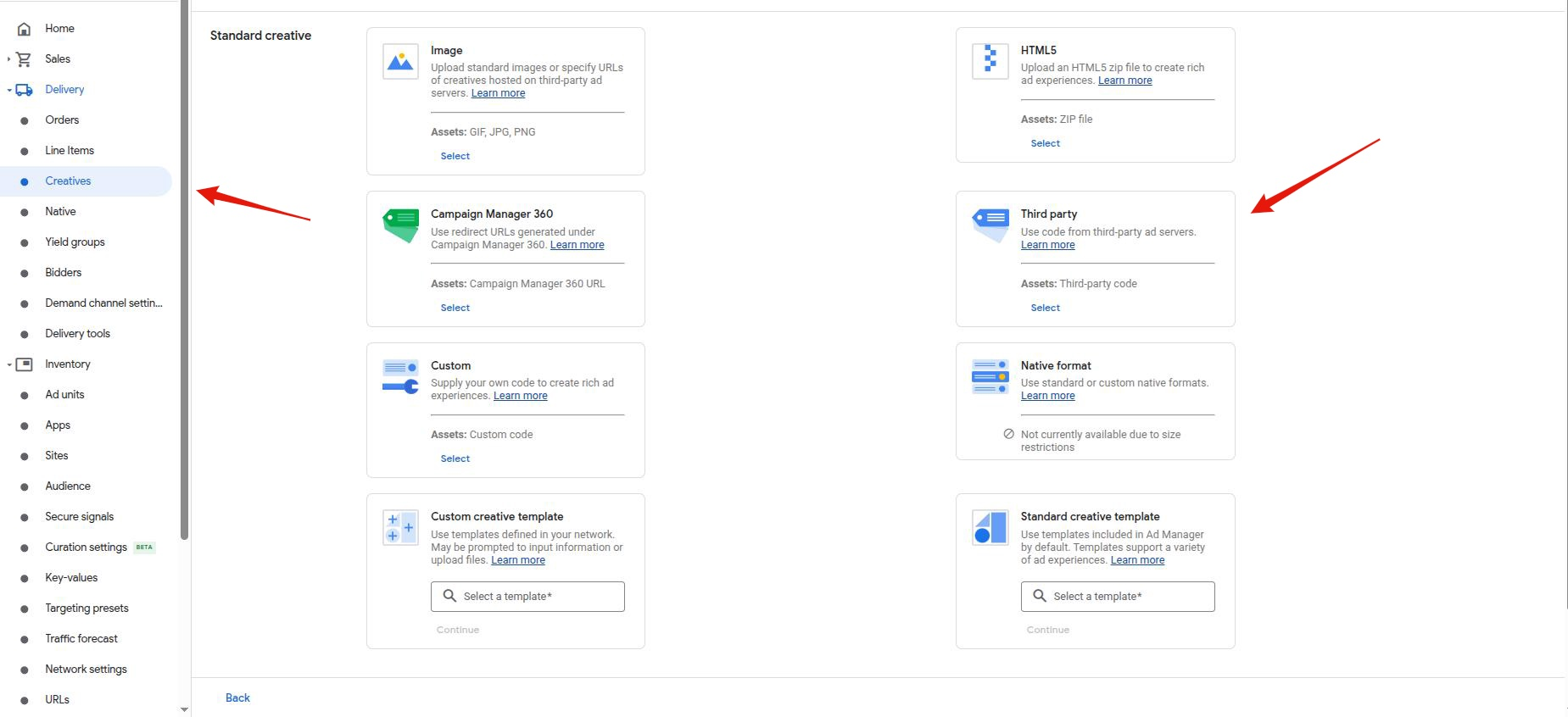
- Target ad unit size: Select 1x1 as the Target ad unit size.
Step 4: Insert the Clickio Tag
- Go the Clickio Platform, select the ad unit, under Implementation tab choose GOOGLE AD MANAGER.
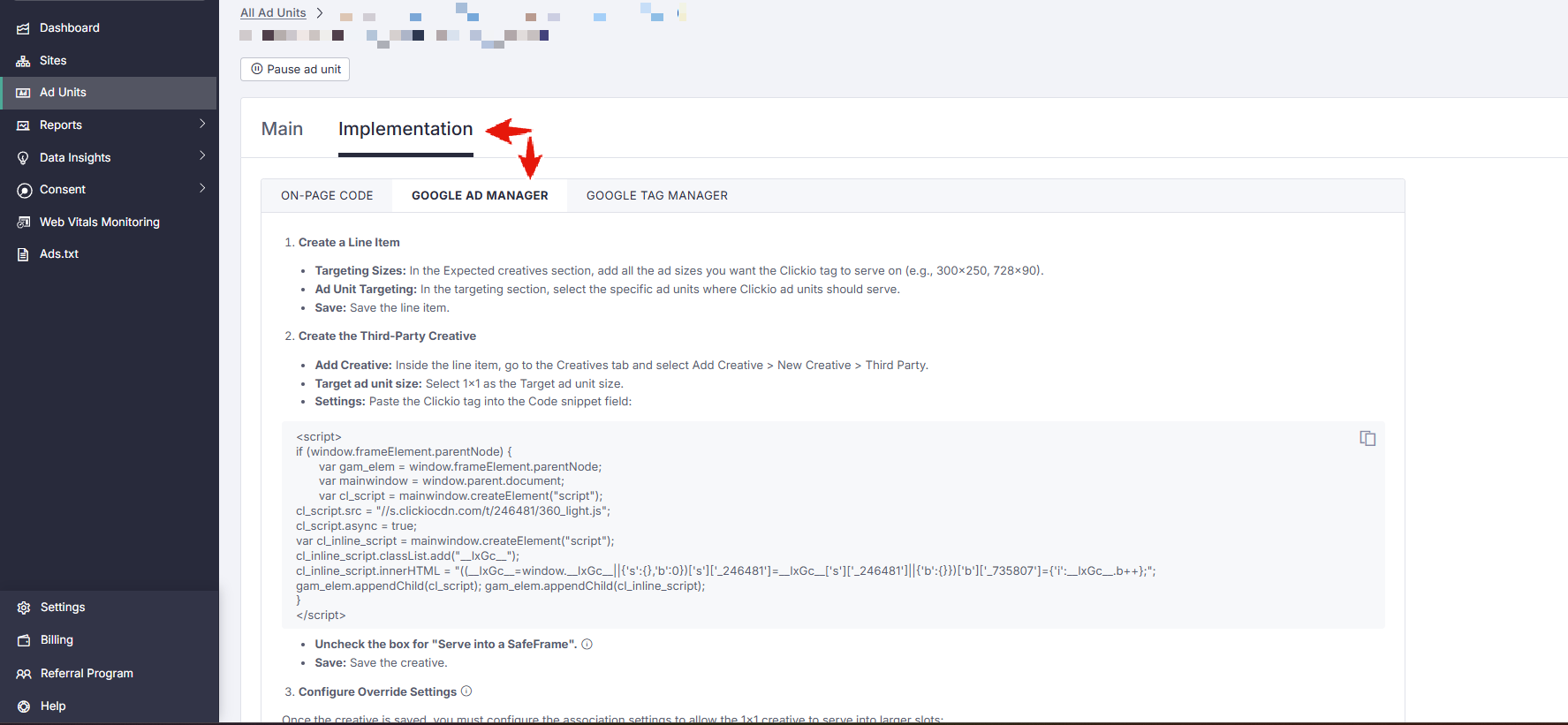
- Paste the Clickio tag into the third-party creative in your Google Ad Manager.
- Under creative settings, disable the option "Serve into a SafeFrame".
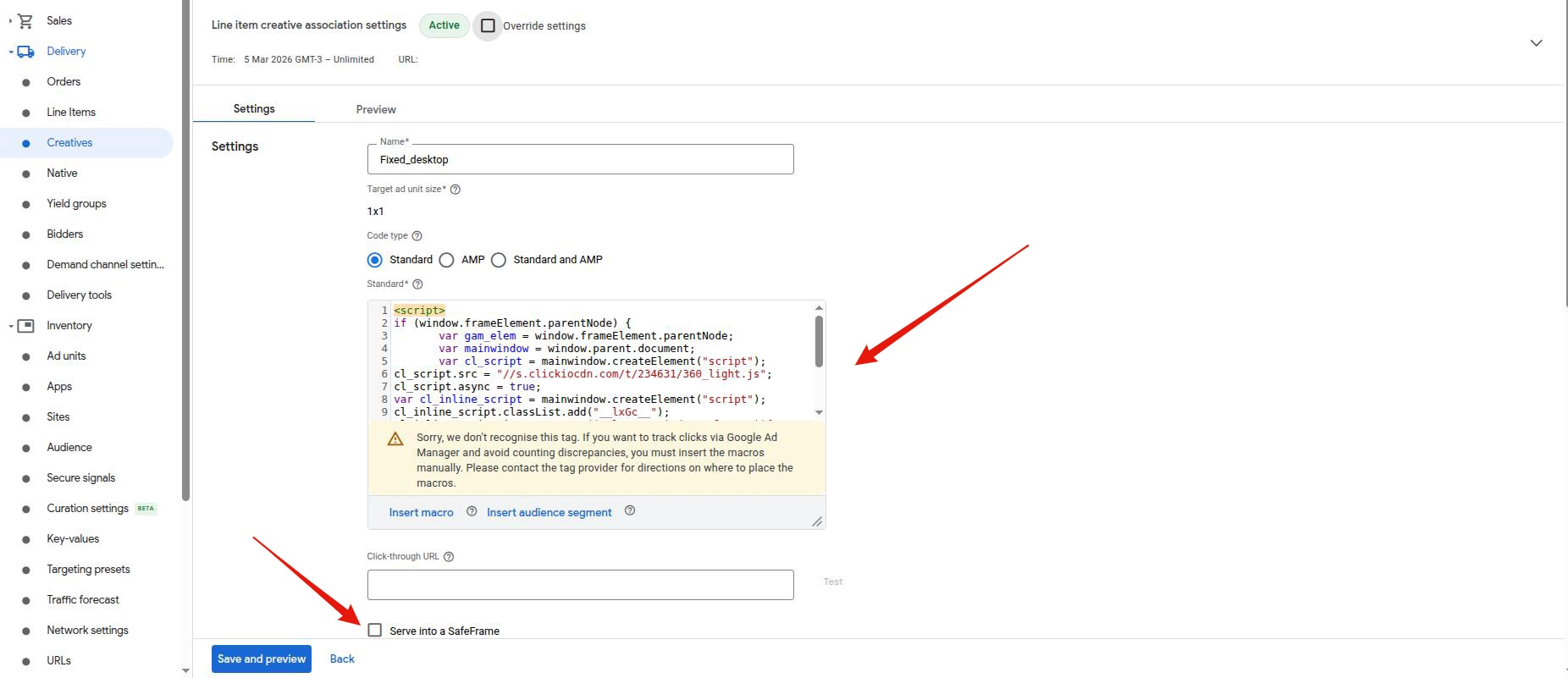
The notification “Sorry, we don't recognize this tag” appears as Google Ad Manager doesn’t recognize Clickio JavaScript code. The notification is not critical and can be ignored.
- Save settings.
Step 5: Test Setup
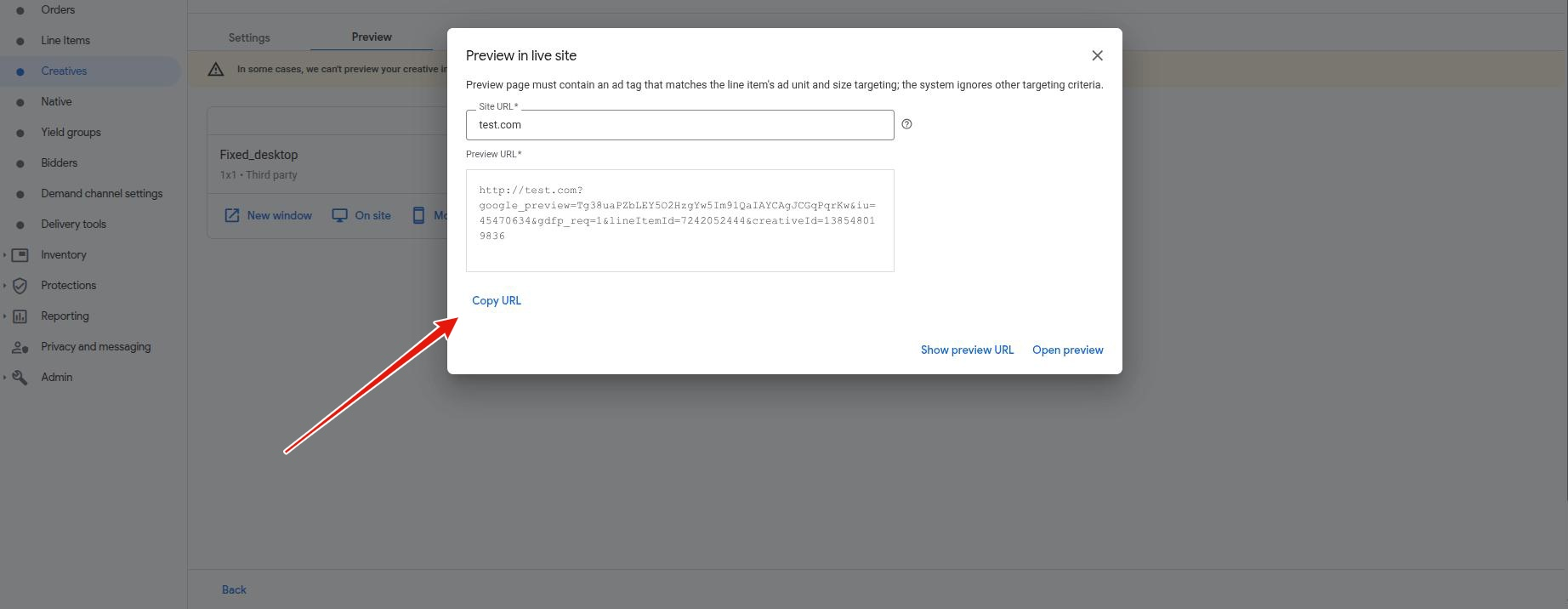
You can obtain a test URL for the Clickio creative and send it to your account manager or Clickio Support so we can check your setup before going live.
1. Go to the Creatives Tab
- Once inside the line item, click the Creatives tab at the top of the page.
- You will see a list of creatives associated with that line item. Click on the Name of the creative you want to test.
2. Open the Preview Tool
- In the creative settings, click the Preview tab.
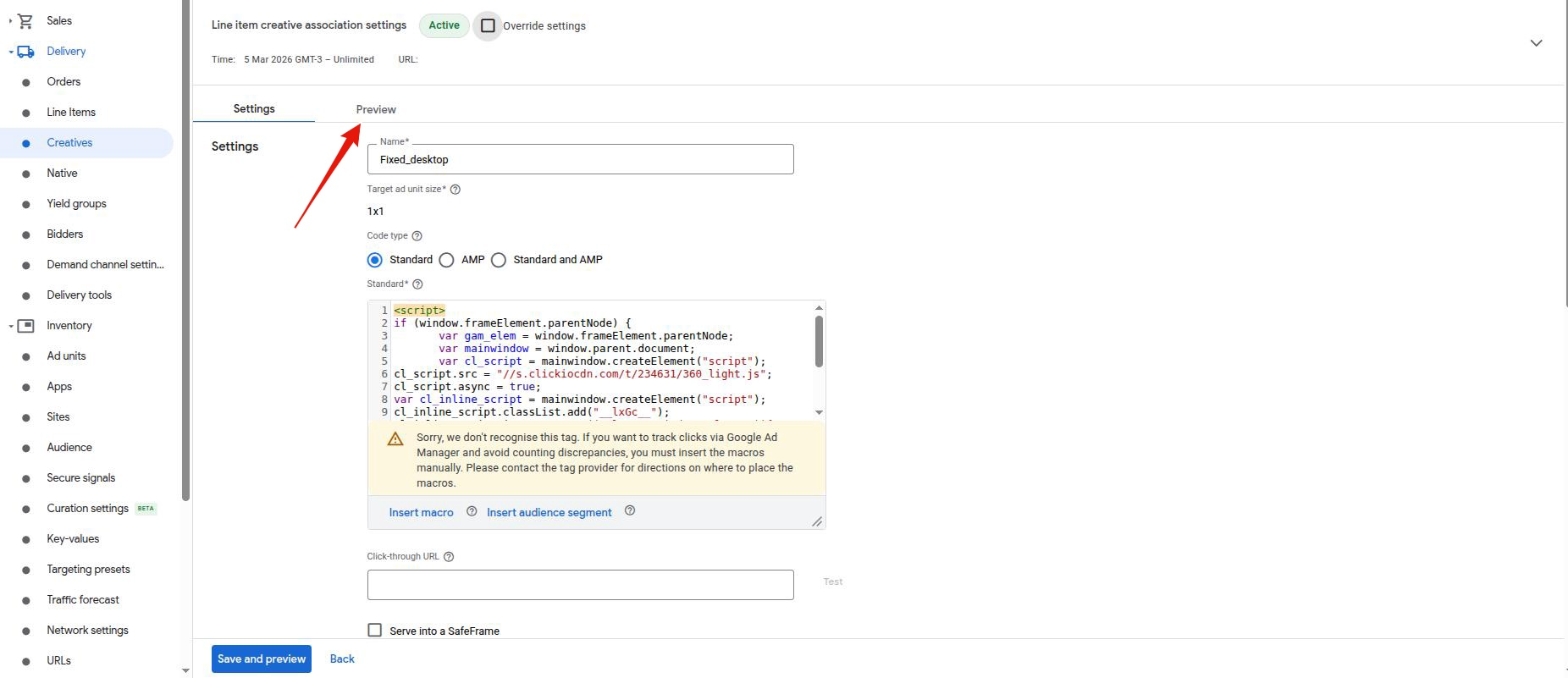
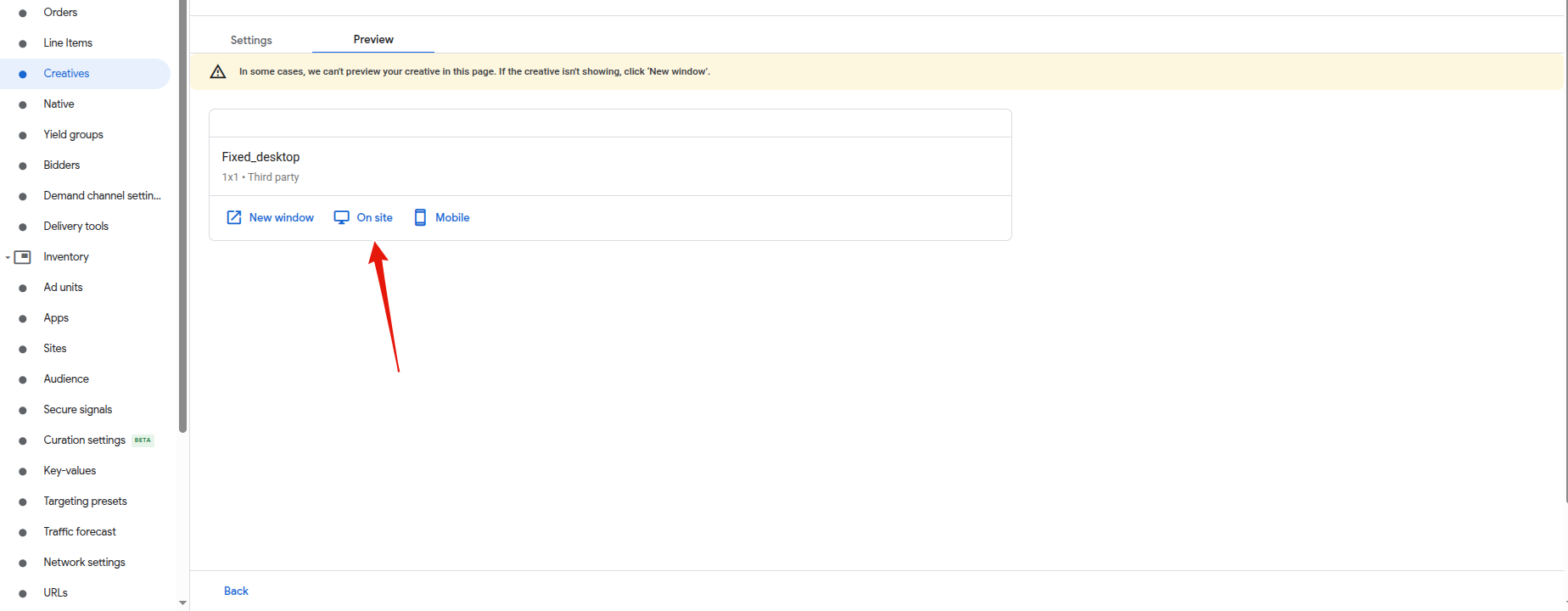
The "On site" tab is usually the most accurate for testing how the ad interacts with your actual website layout.
3. Generate the "On Site" Preview URL
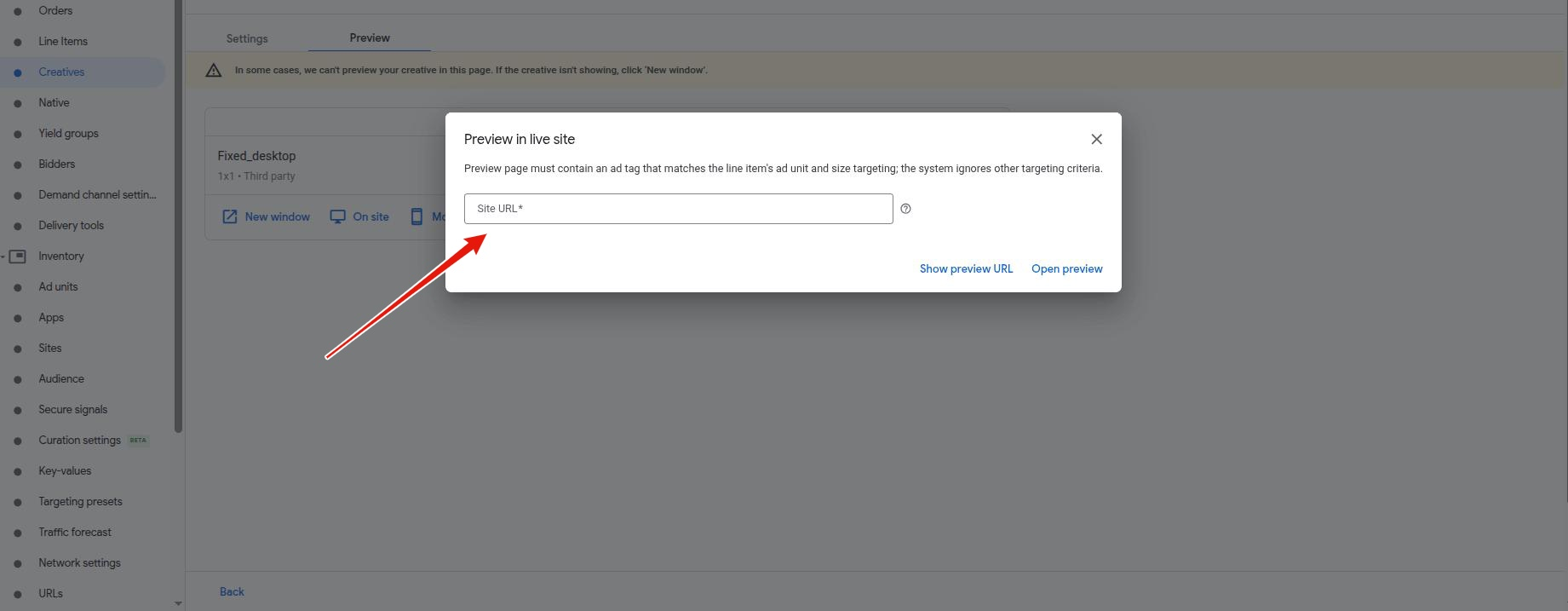
- Click the "On site" tab.
- Site URL: Enter the exact URL of the webpage where the ad is intended to appear and click "Show preview URL".
- Click "Copy URL" and share it with us.
Step 6: Add Clickio as Ad Partner Technology
2. Check Creatives for Consent: Click "Add URLs" in the Check creatives for consent section.

3. Add Clickio URL: Add "clickiocdn.com" as a URL in the Ad partner URL field.

4. Click "Done" and then "Save".

Congratulations! Clickio tags have been successfully implemented in Google Ad Manager. Ad serving will start within 15-30 minutes.
Assistance with Implementation
- Contact Clickio Support: If you need further assistance or information, contact your Clickio account manager or email Clickio Support at support@clickio.com.
- Grant Clickio Access: For efficient troubleshooting, grant Clickio access to your Google Ad Manager account following the provided instructions.
-
Notify Account Manager: After granting access, notify your Clickio account manager.
-
Deactivate Clickio User: Once implementation is successful, deactivate the Clickio user by changing the status from Active to Inactive.